
This last article of the series is for the people who run Fiedler Data Export. The export runs like Fiedler Data Import: a container in the MAS cluster, a deploy with one script, Manage-side scripts that the app installs itself, backup and upgrades. The import series' article on running the import explains those parts, and they hold for both apps.
This article covers what the export adds: a removal from Manage as clean as the install, nightly exports, how long exported files stay, who exported what, and what the monitoring watches. We checked the behaviour on our test system, on the MAS 9.2 series.
Install and removal on one screen#
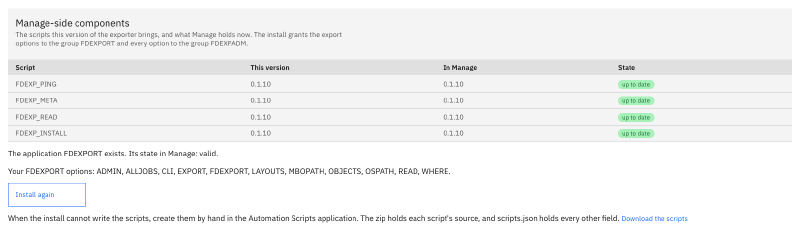
The administration screen shows the export’s four automation scripts, each with the version this release brings and the version that Manage holds. It also shows whether the export’s application exists in Manage and is valid. Install or upgrade writes the scripts, the application with its options, and the two security groups. Before the first install, an administrator accepts the licence agreement on the same screen.
The same screen removes the export from Manage again. Show what an uninstall removes lists every object first and changes nothing: the grants of the application and of the two groups, the Start Center’s included, the options, the groups’ members, the groups, the application and the scripts. Then the administrator types the application’s name to confirm and presses Uninstall.
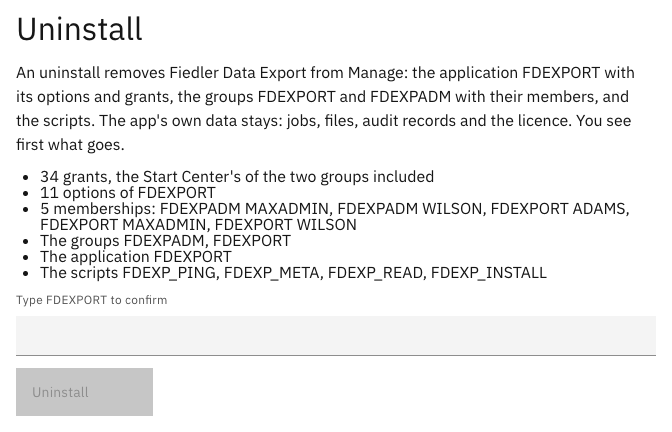
The report names each script that was deleted. The app’s own data stays: jobs, files, audit records and the licence. On our test system, the uninstall left none of the export’s objects in Manage, and the objects of Fiedler Data Import stayed. A new install on the same screen brought everything back. It adds MAXADMIN and the administrator who installs to both groups again, and every other user is added back by hand.
Nightly exports#
The installation guide includes a nightly export as a Kubernetes CronJob. It runs the command line client as an integration user, so each run is an ordinary job of that user:
- The files appear in History, as for any other job.
- A copy of each night’s files stays on the CronJob’s own volume for seven days.
- A failed run is not repeated that night, because a repeat would read the whole selection again.
- Two alerts watch it: one when the last run failed, and one when no run has succeeded for 26 hours.
Automation needs a licence. In the free edition, the command line client is refused, so a nightly run fails and its alert fires. On our test system, the nightly export of the assets at one site runs every night.
How long files stay#
Exported files hold customer data, so they leave again. Every hour, a sweep deletes each job whose last change is older than the retention period, 90 days unless the installation sets another, and the job’s files with it.


- A pinned job stays. Its owner, or a user with the option to see all jobs, pins it on the History page or with the command line.
- A job at work stays. The sweep leaves alone every job that the pod still works on.
- Every sweep leaves a trace. Its log line names the retention period, the cutoff and the number of deleted jobs, and a metric counts each deletion by its reason: the sweep, the owner, or an administrator.
Who exported what#
When a job ends, the app writes its audit record once. The record names the owner, the target, the saved query with its clause, the layout, and every setting with its source. It names each file with its size and its SHA-256 checksum, and each run, resume and cancel with the user, the client and the address. A run also names the system it read: MAS, Manage and the database. The record holds no cell value.
A row of each record also goes into a table of the app. That row stays when the job is deleted, by its owner, by an administrator or by the sweep, and it names when, by whom and why. So the question “who exported which records, and when” has an answer after the files are gone. The owner, and users with the option to see all jobs, download a record on the job’s page or with the command line.
What the monitoring watches#
The app serves its metrics on an internal port, and the cluster’s own monitoring scrapes them. No label carries a user, a job, a file name or a value. The monitoring component brings six alerts:
| The alert fires when | After |
|---|---|
| The app answers no scrape | 5 minutes |
| A job has waited for its owner to sign in again | an hour |
| More than a fifth of the requests to Manage failed | 5 minutes |
| The data volume is more than 80% full | 15 minutes |
| The last nightly export did not succeed | 2 hours |
| No nightly export has succeeded for 26 hours | 10 minutes |
Each alert carries a severity for the installation’s own alerting, and the administration guide says what to do about each one. A Grafana dashboard comes with the app as code, with the jobs, the records, the pages read from Manage, the volume and the last nightly export.
The series, and what comes next#
This is the last article of the series. It started with the round trip out of Manage and back in, and it went through the layouts, the two read paths and a million records to the daily work of running the export. The Fiedler Data Export page lists all five articles, and the products page describes the editions.
Want to run Fiedler Data Export on your own MAS? Get in touch.
IBM and Maximo are trademarks of International Business Machines Corporation, registered in many jurisdictions worldwide.