
The same records can leave Manage in different shapes. A data team that corrects asset descriptions wants a short sheet. A migration wants every attribute. A planner wants each asset with its meters on the rows below it. In Fiedler Data Export, the layout decides the shape: which sheets the workbook has, and which columns each sheet carries.
This article explains the five ways to choose a layout, and when each one fits. Then it shows how a team keeps its own column set: saved layouts, a workbook as the layout, and Excel as the column editor. We checked the behaviour on our test system, on the MAS 9.2 series.
Five ways to choose#
On the Export page, the layout is a choice of five:
| Layout | What you get | Use it for |
|---|---|---|
| Records | Every attribute of the record on one sheet, the unique id included | A file that goes back into the same system |
| Transfer | The same columns without the unique id and without generated numbers that are no key | A load into another system |
| With children | The Records sheet, and one Extended sheet for each relationship you pick | Records with their related records, such as assets with their meters |
| Saved layout | A layout you saved, or one a colleague shared with your security group | A column set that a team uses again and again |
| From a workbook | The header rows of a workbook you drop on the page | The columns of an earlier export or of an import workbook |
Records, Transfer and With children come from Manage’s metadata when you plan, so they follow the attributes and relationships that Manage holds for the object.
Transfer keeps the keys. It leaves out the unique id, which belongs to one system, and the
numbers that Manage generates for its own use. A key such as ASSETNUM stays, even where Manage
generates it, so the target system gets the same asset numbers.
Related records on their own sheets#
With children adds one Extended sheet for each relationship you pick, such as an asset’s active meters. The sheet starts with the key columns of the main record. Then comes a red separator column, and after it the columns of the related records.
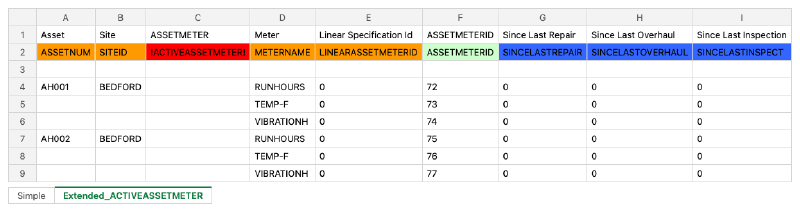
A record’s keys stand in its first row only, and the rows below hold its further related records. That is the shape Fiedler Data Import reads. For filtering in Excel, the switch Parent values in every row repeats the keys on every row.
Classifications work the same way. Pick a classification, and its records move from the main sheet to a Specification sheet of their own, with the class’s attributes as columns in the classification’s own order.
Saved and shared layouts#
When a layout fits, press Save as layout and give it a name. It then appears under Saved layout on the Export page and on the Layouts page.
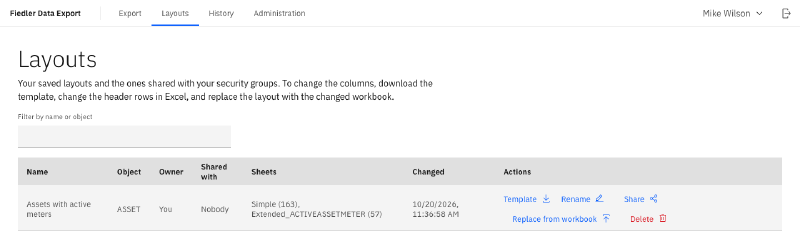
- Share makes a layout visible to the members of security groups. Only its owner changes it.
- Template downloads the layout as a workbook with its header rows.
- Replace from workbook takes new columns from a workbook. The name and the shares stay.
- Rename and Delete do what they say. A job planned with a layout keeps its own copy, so a later change or a delete leaves that job as it was.
Saving and sharing need the option LAYOUTS in the app’s security groups. Every user who may export
can use a layout that is shared with them.
Excel is the column editor#
A layout is a workbook’s header rows. Row 1 holds the titles, and row 2 holds the attribute names. So the place to change a layout is the place where people already work with these rows: Excel.


Each header cell in row 2 carries a note with the attribute’s type and length, and whether it is a key, is required or has a default. So a person who adds a column in Excel sees what the column needs, without a look into Manage’s database configuration.
The same works without a saved layout. Drop any workbook on the Export page under From a workbook, and its header rows become the layout. An earlier export works, and so does an import workbook: every workbook of our example library reads as a layout.
A template starts an import#
A layout also answers a second question: what must a workbook look like, so that it imports? After you plan an export, Download template writes the layout as a workbook with its header rows and no data.
With the first record as a sample in row 4, the template holds one real record as an example. The app writes that row with the same code as an export, so the sample imports exactly as an export would. A colleague who fills in new records sees one correct row right above them.
For administrators#
The installation can limit the relationships that an Extended sheet may use, per object, with the
setting Layout.Relationships.<OBJ>. The limit holds for every layout a plan takes: a generated one,
a saved one and a dropped workbook. So a relationship that reaches data a team should not export
stays out of every file.
What comes next#
The next article is about the two ways the export reads Manage: through the business objects, and through an object structure. The Fiedler Data Export page lists the whole series.
Want to see the layouts on your own data? Get in touch.
IBM and Maximo are trademarks of International Business Machines Corporation, registered in many jurisdictions worldwide.