
Some data in Manage is a tree. A failure class has problems, each problem has causes, and each cause has remedies. An asset has assets below it, and those have assets below them. An organization has sites, and each site has its bill-to and ship-to addresses.
The layout With children of Fiedler Data Export writes one level of such a tree: the main records and their direct children. The layout Multilevel writes the whole path on one sheet, one relationship per level, up to five levels. Fiedler Data Import reads that sheet back, so you can change a hierarchy in Excel and load it again.
This article shows how to build a path, what the sheet looks like, and what to know on the way back into Manage. We checked every step on our test system, on the MAS 9.2 series.
Build a path#
You choose the main object and the records as for any other export. Then you choose Multilevel as the layout and build the path one level at a time.
- Level 1 lists the relationships of the main object. Each one shows the object that it reads,
such as
CHILDREN (FAILURELIST). - When you choose a relationship, the next level lists the relationships of the object that this level reaches.
- You go on until the path holds what you need. A path has at most five levels.
A relationship that points back at its own object, such as CHILDREN on a failure list or on an
asset, can come again on the next level. That is how a path walks down a tree. The line above the
levels shows the path, for example FAILURELIST › CHILDREN › CHILDREN › CHILDREN. The × next to
a level removes that level and every level below it.
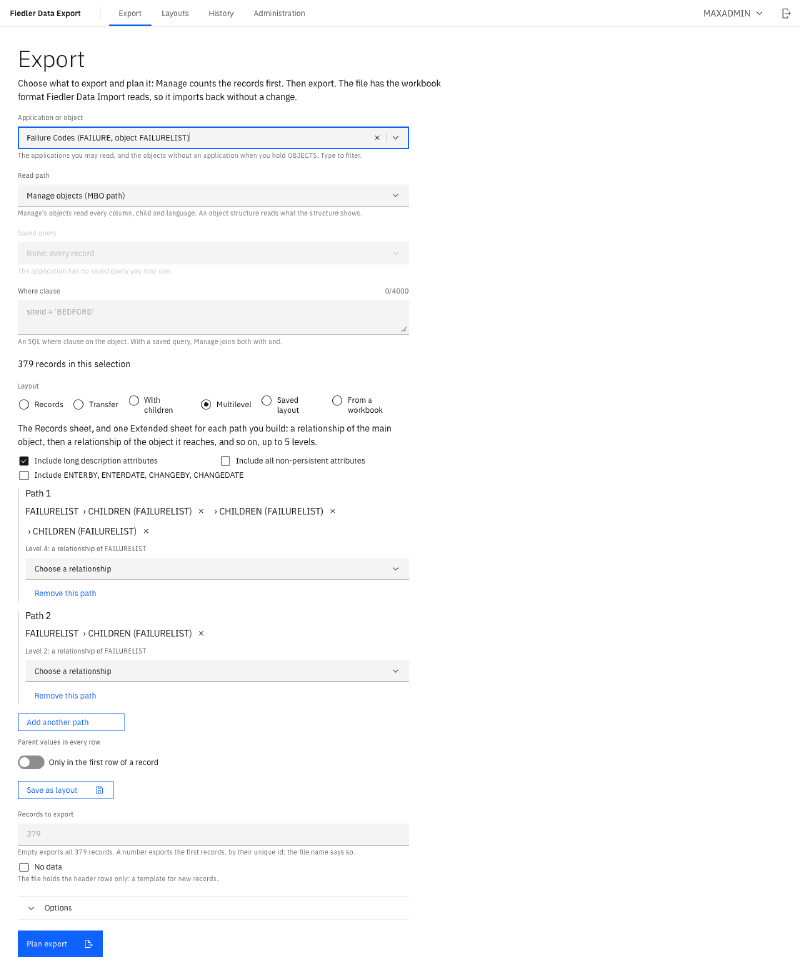
Add another path starts a second path from the main object. Each path gets its own sheet,
because one sheet holds one path. A tree with branches therefore becomes several paths that start
the same way. The picture shows two of them: the first goes from the failure class down to the
remedies, and the second stops at the problems. Both start with CHILDREN, so their sheets are named
Extended_CHILDREN and Extended_CHILDREN_2.
Multilevel reads Manage’s objects. On an object structure the choice is grey, because a structure reads one level of children.
From the command line, fde builds the same path with --rel and a slash between the levels:
fde plan --target FAILURELIST --app FAILURE --where "failurecode = 'CONVEYOR' and parent is null" --preset children --rel CHILDREN/CHILDREN/CHILDRENWhat the sheet looks like#
The main records go on the sheet Simple, with all their columns, as in every export. The path goes
on its own sheet. On that sheet each level has its own group of columns, and a column !REL! with
the name of the relationship opens each group.
| Columns | Level | Holds |
|---|---|---|
| Key of the main record | 0 | The failure class, by its key |
!CHILDREN!, then the problem’s columns | 1 | The problems of the class |
!CHILDREN!, then the cause’s columns | 2 | The causes of each problem |
!CHILDREN!, then the remedy’s columns | 3 | The remedies of each cause |
Each row holds one record of the deepest level. A record of a higher level stands in the first row of the records below it. The next record of that level starts a new row. So a problem with two causes fills the problem’s columns once, and the second cause sits in the row below with the problem’s columns empty.
The switch Parent values in every row repeats the higher levels on every row. That makes it easy to filter in Excel.
Back into Manage#
A Multilevel sheet is the format that Fiedler Data Import reads for several levels. You can import the file as it is, and the plan shows every row as unchanged. Change a value at any level, and the plan shows exactly that record as an update.
Our round-trip tests export hierarchies of three, four and five levels on every build, and they plan each file again with the import. While we built these tests, we found three defects, and each one is fixed:
- The result workbook of an import put every added column after the last column. On a deep sheet the import then read the main record’s unique id as a value of the deepest level. Each added column now goes into its own level.
- A failure list that is both the unique id and part of the key was left out of the path’s sheet. The import could not find the failure class. The sheet now keeps every part of the key.
- Two paths that start with the same relationship gave two sheets with the same name. The second
sheet now gets
_2.
Two things are good to know when you load a hierarchy into Manage:
- Failure codes and their descriptions. A new problem, cause or remedy needs a failure code
record of its own, with the description that Manage shows. Write the description column as
#FAILURECODE.DESCRIPTION. With it, the import makes sure that Manage creates the code record on every level and gives it the description. The columnFAILURECODE.DESCRIPTIONwithout the#is read only. With that column alone, our test load got a code record for the failure class only. - New asset trees. Manage checks the parent of a new asset against the assets that are already saved. A new asset under a new asset in the same load fails. So you load the assets of a new tree first, one per row, and then you change them through the levels.
Why five levels#
Each level opens one more read per record of the level above it, so the work grows fast with the depth. Real hierarchies in Manage stay well inside five levels. A failure hierarchy has four, and an organization with sites and addresses has three. Asset trees can go deeper, and a path of five levels still covers the part of a tree that people usually change in one file. The export, the programming interface and the screen all stop at five, and each of them says so.
What comes next#
The Fiedler Data Export page lists the whole series. The round trip article explains why the export writes the format that the import reads.
Do you keep a hierarchy in Excel and want to try Multilevel on your own data? Get in touch.
IBM and Maximo are trademarks of International Business Machines Corporation, registered in many jurisdictions worldwide.