
An export to Excel is half of the job. The other half is the way back into Manage. You change records in the workbook, and the changes have to reach Manage again. Nobody should type them in a second time, and nobody should need a script that converts one file into another.
Fiedler Data Export is built for that way back. It writes the workbook format that Fiedler Data Import reads, so every file it exports is a file you can import.
This article follows one round trip from start to end. Then it explains why both apps share one format, and it lists what our round-trip tests found while we built the export. We measured on our test system, on the MAS 9.2 series.
One round trip#


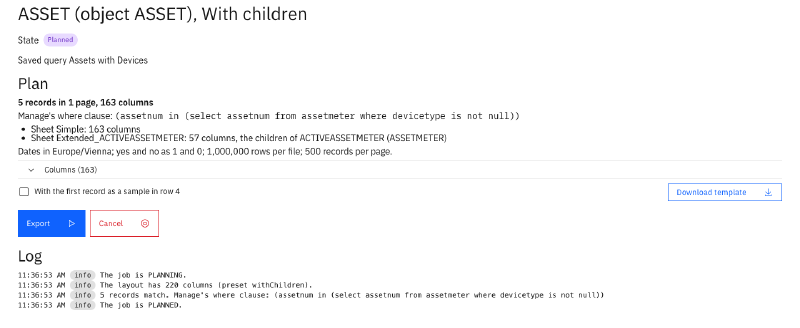
- Choose and plan. On the Export page you pick an application, such as Assets, and one of its saved queries. Manage counts the records, and the plan shows the sheets and their columns. The app has read no record yet.
- Export. The app reads the records as you, page by page, and writes the workbook. The workbook holds exactly the records you may see in Manage.
- Change. You open the workbook in Excel and change what needs a change: a description, a vendor, a location.
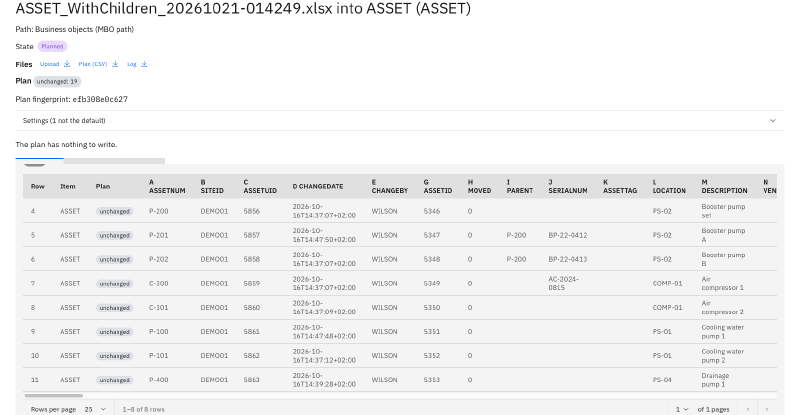
- Plan the import. You upload the same file in Fiedler Data Import. Its plan compares every row with Manage. A row you left alone plans as unchanged. A row you changed plans as an update, and the plan says what changes.
- Run. You check the plan and run it. The import writes the changed records, as you and with your rights.
One format for both apps#
A workbook in this format tells the import what each column means, so the columns need no mapping:
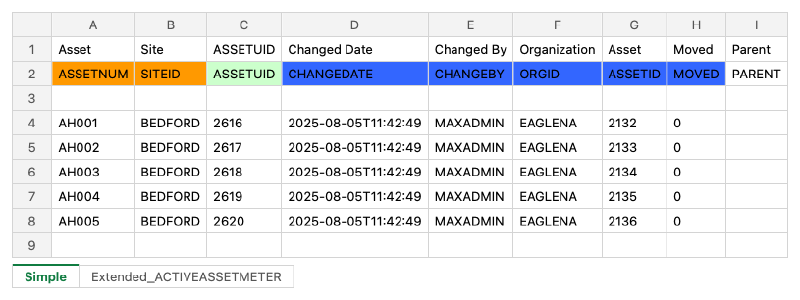
- The sheet names say what the rows are. The main records go on the sheet
Simple. Related records, such as an asset’s meters, go on a sheet namedExtended_and the relationship. The attributes of a classification go on a sheet namedSpecification_and the classification. - Row 1 holds the titles of the columns as Manage shows them, for the people who read the file.
- Row 2 holds the attribute names, and this is the row that both apps read. Its colours mark the keys in orange, the unique id in light green, and the required attributes without a default in blue.
- Row 3 stays empty. From row 4 on, each row is one record.
We keep one format for three reasons:
- Both apps are ours, and they share one workbook package. The export writes with it and the import reads with it. A change to the format reaches both apps in the same build.
- The format already has its users. Fiedler Data Import reads the workbooks of the EAM Data Management Tool and of maximex, which many teams built up over years. An export in that format looks familiar to them on the first day. The article on the workbook format explains it in full.
- A file knows where it belongs. A Records export carries each record’s unique id, such as
ASSETUID, so the file belongs to the system it came from. A Transfer export leaves the unique id out, for a load into another system. The next article covers the layouts.
What the round trip found#
We test the round trip on every build. A suite of round-trip cases exports records from a demo organization on our test system: organizations, people, locations, assets, work orders, job plans, service requests and more. Fiedler Data Import then plans each file. A case passes when every row plans as unchanged, with no error and no warning. The cases plan and never run, so the suite changes nothing in Manage.
A second check compares the exported cells with the workbooks that loaded the demo data, cell by cell. The round trip proves that the import sees no change. The comparison proves that the file holds what those workbooks put into Manage.
Building the suite found real defects, in both apps. Each one is fixed, and the case that found it now guards it:
| What a case found | What we changed |
|---|---|
Assets, locations, work orders and people failed on every row. The import refused the column STATUSDATE, which the export writes. | The import takes STATUSDATE as the date of the status change. |
| Service requests could not be exported. They are a view on the ticket table, and the unique id lives on that table. | The export reads the unique id from the table that a view stands on. |
| In a time zone west of Manage’s zone, a date without a time came back one day early. | The export writes such a date as its day in Manage’s time zone. A run of the suite in a US time zone proves it. |
The comparison found two differences. Both come from Manage’s own rules, and each case names its reason, so a new difference stands out.
What comes next#
The next article is about the layouts: Records, Transfer, With children, saved layouts, and a workbook of your own as the layout. The Fiedler Data Export page lists the whole series.
Want to see the round trip on your own data? Get in touch.
IBM and Maximo are trademarks of International Business Machines Corporation, registered in many jurisdictions worldwide.