
Two people, two halves#
The installation splits along the two roles a MAS installation already has.
- The OpenShift administrator deploys the app into the MAS core namespace: one pod per Manage workspace, a data volume of 5 GiB, and a Route under the suite’s own domain. Monitoring is optional.
- The Maximo administrator installs the Manage side, gives users access, and hands out the command line client.
The companion app article shows what runs where. This one is about the work around it.
The deploy: one script#
The OpenShift administrator writes a small overlay for the cluster, with the namespace, the domain
and the routing, and runs one script. It checks the login, creates the secrets the app needs,
applies the overlay, creates the Route once the certificate is issued, registers the app with MAS’s
sign-in, and waits for the rollout. A good run ends with a call from the app to MAS’s internal API
that answers 200, and the line DONE: open https://<host><path>/.
A later update needs only the new image. The same script applies the overlay with the new digest and leaves the secrets, the Route and the sign-in registration as they are. Our own pipeline runs exactly this command after every build.
The Manage side: one button#
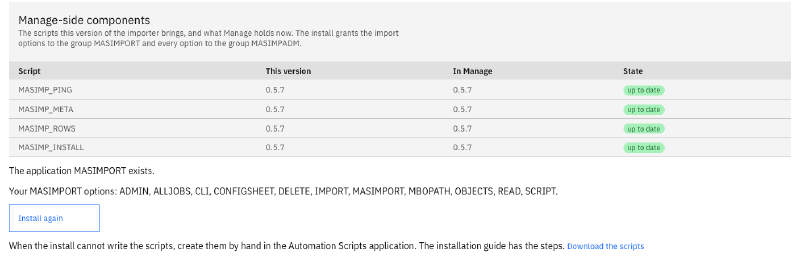
The Maximo administrator opens the app’s administration screen and presses Install. The app writes its four automation scripts, its application with the signature options, and its two security groups, with the administrator’s own sign-in. The install is safe to repeat, and it changes only what differs.
The screen shows each script’s version in the app and in Manage side by side. After an upgrade of the app, a newer script reads “outdated” until the administrator installs it. Where an installation may not write scripts, the same screen offers them as a download, to create by hand.
Metrics and eight alerts#
The app serves Prometheus metrics on a port of its own. They count jobs by outcome, rows by action and errors by category, and they time each stage of a job and each request to Manage. They also report the free space of the data volume and whether the last settings file passed its check. No label carries a user name, a job, a file name or a cell value.
With the monitoring component, the deploy adds eight alerts, each with a severity, so your Alertmanager decides where they go:
| Alert | Fires when |
|---|---|
MasImportJobsFailing | More than a fifth of the last hour’s jobs failed |
MasImportManageFailing | More than a fifth of the requests to Manage failed for ten minutes |
MasImportQueueLong | Jobs wait for a free slot; quiet in this version, where jobs never queue |
MasImportJobWaitsForOwner | A job has waited for its owner for two hours |
MasImportVolumeLow | The data volume has less than a tenth free |
MasImportScriptsOutdated | A script in Manage differs from the version the app expects |
MasImportConfigRefused | A settings change was refused, and the previous settings stay |
MasImportDown | The app has not answered Prometheus for five minutes |
The administration guide explains each alert and what to do about it.
Upgrades and backup#
An upgrade is a new image. Only one pod may hold the data volume, so the old pod stops before the new one starts, and a short interruption follows. Choose a quiet time: a job that was running waits for its owner, who resumes it, and the app checks Manage before it sends a row again. After the app, the administrator installs the new scripts with the same button.
The data volume holds the jobs: uploads, plans, results and logs. Two ways keep it safe. The cluster’s own volume backup covers it like any other volume, taken when no job runs. A backup script writes the volume to a file while the app runs. It copies the job index consistently and refuses while a job is busy. On our cluster it saved 1.8 GB with 3,038 jobs in 17 seconds. A restore script puts such a file back and counts the jobs it restored.
The command line client#
mas-import comes as a single file for Linux, macOS and Windows. It does what the screens do:
upload and plan, run, read results and logs, resume and review, purge, and run test suites. People
sign in through the browser; scripts use a Maximo API key, from the keychain, an environment
variable or a file only its owner can read.
$ mas-import import assets-delete.xlsx --app ASSET --run --wait
j_0mvcwuzp954fb9f4f72a6dd150dc4
job j_0mvcwuzp954fb9f4f72a6dd150dc4 PLANNED (mbo): plan delete 2
  Simple: ASSET delete 2
job j_0mvcwuzp954fb9f4f72a6dd150dc4 RUNNING
job j_0mvcwuzp954fb9f4f72a6dd150dc4 DONE: run delete 2
Real output from our test system, as the command line reference records it.
Every command ends with an exit code a script can test: 0 for a clean job, 1 when rows failed, 5
when no sheet of the plan can run, and more for a refused sign-in or an unreachable app. A profile
for a production system makes every command that writes ask for --yes.
Test suites of workbooks#
A test suite is a folder of workbooks, each with the result it must give, in a small file next to
it. Setup steps create what the cases need, the cases plan or run, and the teardown removes what the
suite created, also after a failed case. A case can check the counts per sheet, single rows, the
columns of the preview, and a second plan after the run, which can require every row to read
unchanged.
mas-import test runs the suite and writes a JUnit report for the build server.
A suite writes to Manage, so it runs only against a test system: the client and the app both
refuse it on production. Our pipeline runs the suite of our example workbooks after every deploy.
On the latest build it ended with 30 passed, 0 failed, teardown clean, in under two minutes.
You can build the same for your own workbooks: the loads of your go-live, run against a test system before each upgrade of Manage.
What comes next#
This ends the series. The MAS Data Import page lists all nine articles.
Want to run MAS Data Import on your own cluster? Get in touch.