
The job page after a run#
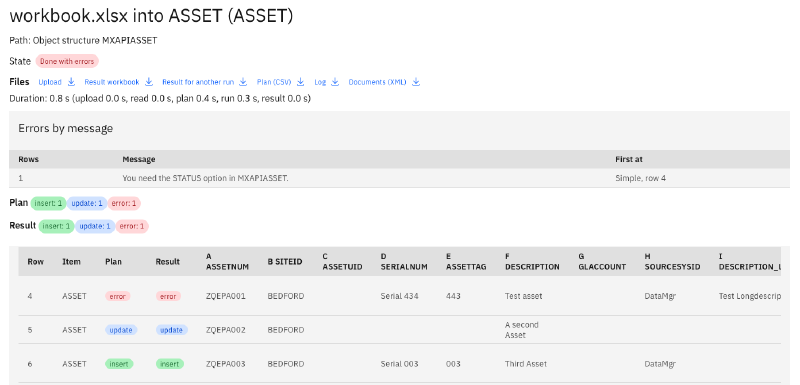
This job imported three assets through the object structure MXAPIASSET. One row inserted, one
updated, and one failed, because the user lacks the STATUS option there.
The job page puts the plan and the result side by side, as counts and per row. Errors are grouped by message, with the number of rows and the first row of each, so a hundred rows with the same problem read as one line. The page also shows the time per stage and the values Manage wrote back, such as the id of a new record. The files to download sit at the top.
Your workbook, with the results written in#

The result workbook is your own workbook. Every row gets its result text in the column
$IMPORTERROR, which the result adds at the end when the sheet has none. Colours mark the cells
that need a look:
| Colour | What it marks |
|---|---|
| Green | A unique id Manage gave back, and an added unique id column |
| Orange | An autokey value Manage gave back, and an added SITEID column |
| Yellow | A key value written back |
| Red | The cell an error names, the result text of an error or of a row in doubt, and the $ADDONLY or $UPDATEONLY flag of a skipped row |
| Lavender | A read-only value that was not set |
| Grey | An ORGID that is ignored, because the object is site-level |
In the result above, row 4 failed, and its result text is red. Row 5 updated its asset, and the
STATUS cell is lavender, because STATUS is read-only there; the result text says so. Row 6
inserted a new asset, and the ASSETUID Manage gave it is written back in green.
The workbook keeps its own colours, such as the orange and green headers above, and its other
sheets keep their values and formulas. Colour legends and data dictionaries are left out. The
importer reads .xlsx workbooks. An old .xls file from the Excel 97 days is refused with one
sentence of advice: open it in Excel, save it as .xlsx, and upload it again.
The values Manage writes back#
A new record often gets values from Manage itself: a unique id such as ASSETUID, or a number from
an autokey, such as a work order number. The result writes them into the row, so the workbook now
names the record it created. When the sheet has no column for such a key, the result adds one. On
the object structure path, the app reads each new record back by its keys to get these values.
So the returned workbook finds its records the next time. Plan it again, and every row the run wrote reads unchanged, as the plan article shows.
Fix the failed rows, and upload again#
The job offers a second workbook: Result for another run. It holds the values Manage wrote back and leaves out the result texts and the red marks. Fix the failed rows in it, upload it, and plan. The rows that went in before now read unchanged, and the plan shows your corrections as the only changes.
Plan (CSV) gives the whole plan as a table, with the planned and the actual action and the message of every row, for a closer look in a spreadsheet.
When a job stops halfway#
A job can stop in the middle: the app restarts, or an answer from Manage gets lost on the way. The app keeps its progress per batch of rows. It marks a batch as sent before the call leaves, and records the answer before it sends the next batch.
A job that stopped waits for its owner. You press Resume, or run mas-import resume, and the job
first checks the rows of the last batch in Manage, read-only:
- The record is there with the workbook’s values. The lost call saved it, so the app sends nothing. The row reads “Saved by the call before the interruption.”
- The record is missing. The app sends the row now.
- A row marked
$DELETE. A record still there is deleted now. A record already gone reads “Deleted by the call whose answer was lost.”
On our test system we deleted the app’s pod in the middle of a job of 400 new assets. The new pod showed the job waiting for its owner. After the resume, the 20 row groups of the lost batch were found saved, none was sent again, and the job ended with the same 400 inserts as a run without the interruption. A read-back in Manage found no duplicate.
The rows only you can decide#
One case has no safe answer: a new record without any key in its row, such as a work order whose number Manage gives. When the answer for such a row is lost, the app cannot look the record up, and sending it again could create it twice.
So the app never sends such a row again by itself. It marks the row as in doubt, finishes the rest, and the job waits for your review. You check each row in Manage and decide: Was saved, and the app sends nothing, or Send again, and it sends the row now. An administrator can close the rest as undecided; those rows keep the note that they may have been saved. Each decision lands in the log with its user and time.
What comes next#
The next article is about
the settings: the four layers they
come from, the CONFIG sheet, and the callbacks for your own logic. The
MAS Data Import page lists the whole series.
Want to see the result of your own workbook? Get in touch.