
Four layers#
| Layer | Source | Who sets it |
|---|---|---|
| 1 | The ConfigMap in the cluster, one file config.yaml | The cluster administrator |
| 2 | A configuration script in Manage | The customer’s Maximo developer |
| 3 | The CONFIG sheet in the workbook | The author of the workbook |
| 4 | The job options in the import screen, or mas-import --set | The person who imports |
The layers are read in this order, and the rules are short:
- A later layer wins for a plain setting, such as the time zone of the dates.
- A limit only goes down. The row limits and the batch sizes may only shrink below the ConfigMap, and the pause between batches may only grow. So a workbook or a user can make a job gentler on Manage, and never harder. A loosening is a warning, and the value stays.
- The configuration script can lock a setting. The
CONFIGsheet and the job options then leave it as the script set it, with a warning. - Instance settings belong to the ConfigMap alone. Another layer that names one is an error.
- Settings never grant rights. Permissions come from Manage’s options alone, as the previous article shows.
- Every value is applied or refused. A name the catalogue does not know is an error in every layer, and so is a setting that does not work in this version.
The plan stores the resolved settings with the job, and the run uses them, even when the ConfigMap changes in between.
Every value shows its source#
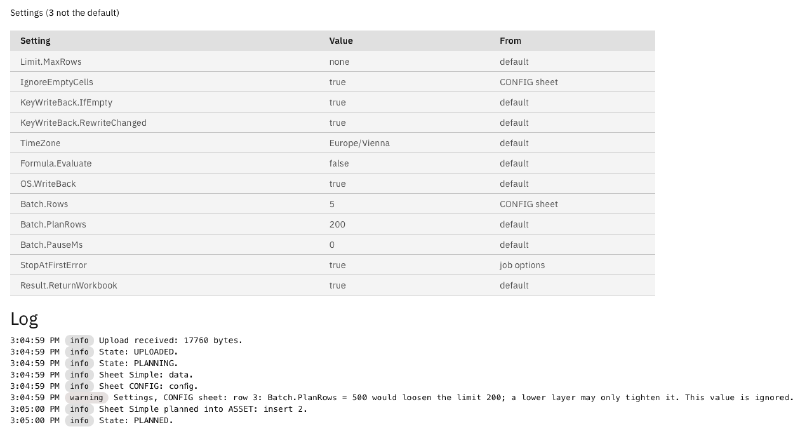
This workbook carries a CONFIG sheet that sets smaller batches and keeps empty cells from clearing
values in Manage. It also tries to raise the number of rows planned per request. The person who
imports set one job option: stop at the first error.
The job’s Settings panel lists every value with where it came from: the default, the CONFIG sheet
or the job options. The raised limit stayed at its default, and the log names the row of the
CONFIG sheet that tried it.
The ConfigMap: the administrator’s layer#
The ConfigMap holds one file, config.yaml, which lives in the deployment’s overlay for the
cluster. Names may be written flat or nested:
Batch.Rows: 10
Limit.MaxRows.ASSET: 5000
Callbacks.ASSET.PLAN.DONE: MASIMP_ASSETRULES
A change takes effect while the app runs, within about a minute, for new jobs. Every load is checked against the settings catalogue. A file with an error keeps the previous values in force: the app stays ready, a metric drops, an alert fires, and the administration screen names each problem. At a start, an invalid file stops the app with a line that names the setting.
The CONFIG sheet: the workbook’s layer#
A sheet named CONFIG carries settings for that one workbook: the name in column A, the value in
column B, and a note in column C if you like. The sheet applies when the installation allows it and
you hold the option CONFIGSHEET. Otherwise the plan lists the sheet as skipped, with the reason,
and the job runs on the other layers. An error in the sheet fails the job, and the log names its
row.
The configuration script: rules of your own#
A ConfigMap setting can bind an automation script that the app calls once per job, after it read
the CONFIG sheet, as the person who imports. The script gets the job, the user, every setting
with its source, and the sheet’s values. It answers with the values it sets and the ones it locks.
A sketch, in the JavaScript that Manage’s automation scripts run:
var body = JSON.parse(String(requestBody));
var answer = { set: {}, lock: [] };
if (body.job.object === "ASSET") {
  answer.set["Batch.Rows"] = 5;
  answer.lock.push("Batch.Rows");
}
responseBody = JSON.stringify(answer);
From the administration guide of MAS Data Import.
The app checks the answer as strictly as the other layers. A script that cannot run, or an answer with an error, fails the job, because a lock that did not land must never let a job through.
Callbacks: your logic at five points#
Five points of a job can call an automation script of your own, as the person who imports:
| Point | When | The script may |
|---|---|---|
FILE.ACCEPTED | After the upload’s checks, before the workbook is read | Reject the file with a reason |
PLAN.DONE | After the plan | Reject the job, or add a note to rows |
GROUP.BEFORE | Before each batch of row groups is sent | Change values the sheet has, skip a group, or stop the job |
GROUP.FAILED | After row groups of a batch failed | Put its own message before Manage’s |
JOB.DONE | After the job ended | Notify or follow up |
A binding names the script for one object, or for every object with *, and the object’s binding
wins. Bindings live in the ConfigMap only, because a binding chooses which code runs as the user.
The three checks fail closed: when their script cannot run, the job fails or stops. The last two
only advise, and a failure there is logged.
Scripts per row#
A workbook can also name a script per row, in a column such as $SCRIPT.POST.CREATE.MAINOBJECTMBO.
The script runs at that point of the save, inside the same save as the row, on the business object
path. It needs the option SCRIPT, and its name must start with a prefix the installation allows,
by default MASIMP_. So a workbook can only name scripts that carry an allowed prefix, and the
administrator decides which prefixes those are.
All of this is Manage automation scripts, the tool your Maximo developers already know. MAS Data Import adds no plugin system and no Java of its own.
What comes next#
The next article is about numbers: how MAS Data Import behaves with 10,000 job plans and with a workbook of a million rows. The MAS Data Import page lists the whole series.
Want to see your own rules in a configuration script? Get in touch.