
Your sign-in, carried into Manage#
In the browser you sign in through MAS, like anywhere else in the suite. The app keeps your sign-in in memory and passes it to Manage with every call, so Manage sees you and applies your security. A record the app saves carries your name in its change history. A companion app beside Manage tells how long jobs renew the sign-in and wait for you when they must.
The command line client signs in two ways:
- People sign in through the browser.
mas-import loginopens the MAS sign-in page, and the CLI keeps its session in the operating system’s keychain. - Scripts use a Maximo API key of the user they run as. The key comes from the keychain, an
environment variable or a file that only its owner can read.
mas-import loginnames the user the key signs in as.
The app writes no sign-in and no key to its volume, a log line or a metric. A restart of the app drops them all.
Two kinds of rights#
Two kinds of rights decide what you can do: the importer’s own options, and the rights you already hold in the Manage application you import into.
The importer’s own options are signature options of its own application, MASIMPORT, which
the app adds to Manage. You grant them in Security Groups like any other option:
| Option | Allows |
|---|---|
MASIMPORT | Open the importer and see your own jobs |
IMPORT | Plan and run on the object structure path |
MBOPATH | Plan and run on the business object path |
DELETE | Rows marked $DELETE |
SCRIPT | $SCRIPT columns, for scripts whose names start with an allowed prefix |
CONFIGSHEET | A workbook’s CONFIG sheet takes effect |
CLI | Sign in from the command line |
ALLJOBS | See, download and purge every user’s jobs |
ADMIN | The administration screen |
OBJECTS | Import into objects that have no application of their own |
The install creates two groups. MASIMPORT is for people who import, and holds READ,
MASIMPORT, IMPORT, MBOPATH, DELETE, CONFIGSHEET and CLI. MASIMPADM is for
administrators and holds every option. SCRIPT, OBJECTS, ALLJOBS and ADMIN stay with the
administrators, because they reach past Manage’s own rights or into other users’ jobs.
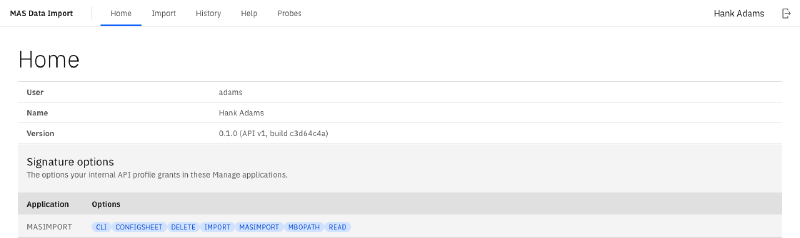
The Home screen shows who you are and the options you hold. Hank Adams, a user of our test system,
is in the group MASIMPORT. He holds its seven options, and his menu has no Administration tab.
The target application’s own rights decide every row: INSERT for a new record, SAVE for a
change, DELETE for a row marked $DELETE, and STATUS for a row that sets a status. The import
list offers only the applications where you hold INSERT or SAVE. Objects without an application
of their own have no application right to protect them, so they need the importer’s option
OBJECTS.
Checked twice, site by site#
Your rights are checked twice. The app reads them from your profile in MAS and refuses a row before it sends it, so the plan names the missing option. Then the scripts inside Manage ask Manage itself again, for the record the row touches, and the save runs with the application set, so Manage’s own checks apply as well.
Manage grants rights per site when a security group is limited to some sites. So the scripts ask
for the record’s site: the site of the record found, else the row’s SITEID, else your insert
site. For an application that works per organization, they ask for the record’s organization in
the same way. A planner whose group may create locations at one site can do that through the
import, and a row for another site gets an error that names the option.
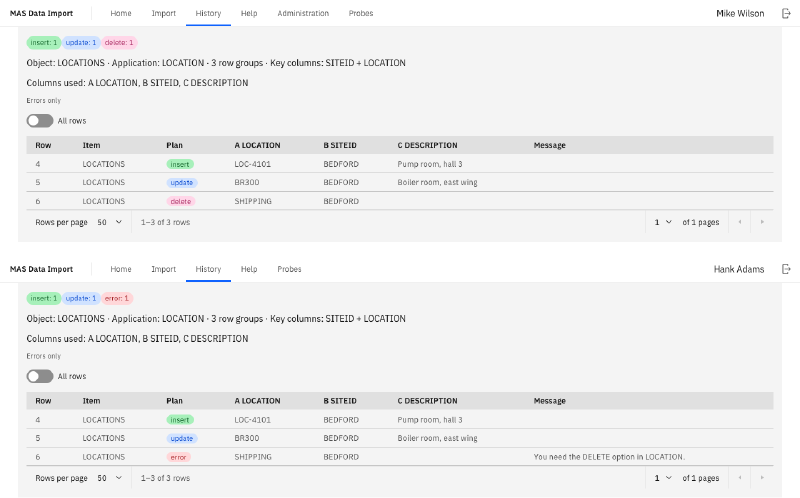
Here two users plan the same workbook of three locations at BEDFORD. Mike Wilson may insert, change
and delete locations, so his plan does all three. Hank Adams’s group grants him INSERT and SAVE
in Locations at BEDFORD and five other sites, and no DELETE. His plan inserts and updates, and
the delete row tells him which option he lacks.
Your jobs are yours#
The history shows your own jobs, newest first. A job of another user looks exactly like one that does not exist.
- Only the owner runs or resumes a job. Every batch writes as the person who starts it, so the records of one job name one person.
ALLJOBSlets administrators see, download and purge every job. They may also cancel one.- A job lives for 90 days after its last change, unless your administrator set another period. A pin keeps it longer, and a purge removes it with all its files. The records in Manage stay.
- A purge leaves a one-line record: the job, its owner, the object, the state, when, by whom and why.
Each job keeps its files: the upload, the plan as a CSV file, the log, the result workbook and the
result for another run. On the object structure path, it also keeps the documents it sent to
Manage. Only the owner and holders of ALLJOBS can download them.
What the log keeps, and what it leaves out#

The log tells what happened, step by step: the upload, each state, each sheet with its counts, and the rows with errors, up to a thousand per sheet. Beyond that, one line points to the result workbook. A line names things, such as the sheet, the row, the column, the attribute, the option and the application.
A line never holds a value from a cell. Where a message would quote one, the log writes “(not
logged)”, as in “No record has ASSETUID = (not logged).” Manage’s own message text can quote data
too, so the log keeps only its message number, such as BMXAA4153E. The values stay in the plan and
in the result workbook, which only you and holders of ALLJOBS can download.
What comes next#
The next article is about the results: the colours in the result workbook, the values Manage writes back, and how a job resumes and asks for your review. The MAS Data Import page lists the whole series.
Want to see MAS Data Import work with your own security groups? Get in touch.