
A workbook holds sheets, and the name decides#
A workbook holds one or more sheets to import, and any number of other sheets. The importer reads the sheets to import in workbook order. The start of a sheet’s name decides what kind of sheet it is:
| Sheet name starts with | Kind |
|---|---|
Simple | One object. Every column belongs to the main object. |
Extended_ | A main object and its child records. A separator column names the relationship. |
Specification_ | Specification values of a classification. |
INDEX | A list of the sheets to import, and the object each one is for. |
CONFIG | Settings for this one workbook. |
A sheet with any other name, such as a data dictionary, a colour legend or Sheet1, is skipped.
The plan names every skipped sheet with its reason, so you see what the importer left alone.
To switch a sheet off without deleting it, put a few characters in front of its name, such as
xxExtended_JOBTASK. The name no longer starts with a known kind, and the plan lists the sheet as
skipped.
Four rows, each with its own job#
| Row | What it holds |
|---|---|
| 1 | Titles for people. Above a separator, a title may name the parent object of the columns to its right. |
| 2 | The attribute names and the control columns. This row decides the layout of the sheet. |
| 3 | A description or a sample row. It is never imported. |
| 4 and below | The data. A row whose cells are all empty is skipped. |

In this sheet, row 2 names the attributes of the asset: ASSETNUM, SITEID, ASSETUID and so on.
Row 3 holds a sample asset, which the importer leaves alone. The three assets to import start in row
4. Column M is a control column, $UPDATEONLY, set for the second asset.
Row 3 catches people out. A user who types the first record into row 3 loses it, because row 3 is never imported. So when row 3 holds values without a fill, the plan warns that it looks like data.
Row 2 decides everything#
Each cell in row 2 is an attribute name, written in one of a few shapes:
| Header | Meaning |
|---|---|
DESCRIPTION | An attribute of the object of this column group |
DESCRIPTION_LONGDESCRIPTION | The long description of that attribute |
(DE)DESCRIPTION | The attribute in another language |
!SPAREPART! | A separator: the columns to its right belong to the related object |
FAILURECODE.DESCRIPTION | A value read from a related record, shown for reference and never written |
#FAILURECODE.DESCRIPTION | Sets the attribute on the first record of the relationship |
$… | A control column, which steers the import and is never written to a record |
The importer matches every name against Manage’s own data model when it plans. A misspelled header or an attribute the object does not have shows up in the plan, with its column, before anything is written.
Parents and children in one sheet#
A separator column such as !JOBTASK! names a relationship of the main object. The columns to its
right belong to the related records. A row with any main column filled starts a new record. The
rows below it with empty main columns add child records to that record.
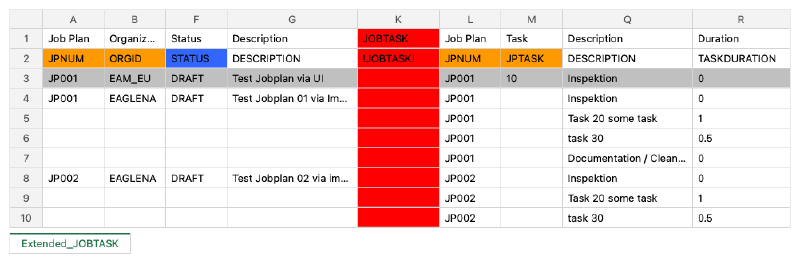
Here the separator !JOBTASK! in column K starts the tasks. Job plan JP001 in row 4 gets four
tasks, from row 4 to row 7, because rows 5 to 7 leave the job plan’s columns empty. Row 8 starts the
next job plan.
The separator names a relationship, so it reaches any related object, such as spare parts of an asset or labor of a job plan. Each further separator opens one more level, so a single sheet can carry a hierarchy three levels deep or more.
Control columns#
A control column starts with $. The importer matches it by its start, so $DELETEFLAG counts as
$DELETE.
| Column | What it does |
|---|---|
$IMPORTERROR | The result text of each row lands here. Without the column, the result workbook adds it at the end. |
$DELETE | Y or 1 deletes the record the row finds. When the row finds none, nothing happens, and the result says so. |
$ADDONLY | Y or 1 skips the row when the record already exists. |
$UPDATEONLY | Y or 1 skips the row when the record does not exist. |
$SCRIPT.<LAUNCHPOINT> | Names an automation script to run for this row at that launch point. |
$NOTE, or any other $ column | A comment. The importer ignores it. |
The cell value ~null~ clears an attribute, also when the job leaves empty cells alone.
Values#
The importer reads a cell by its type in Excel and by the attribute’s type in Manage. A number in a
text attribute becomes text without a decimal part, so a key such as 1001 stays 1001. A date
needs a date cell: a plain number such as 45231.5 in a date attribute is an error with a clear
message. Dates take the time zone of the job, which is your MAS time zone unless you choose another.
A formula cell contributes the value Excel stored with the file. When a file holds a formula with no stored value, the plan asks you to open it in Excel, save it and upload it again.
Specification values#
A Specification_ sheet sets the specification values of a classification. It has the main
columns, among them CLASSSTRUCTUREID, then a separator with the specification object, such as
!ASSETSPEC!, and then one column per specification attribute. The importer saves the record with
its class first, so Manage creates the specification rows, and then writes each value into the
column that fits its data type.
Settings in the workbook#
A sheet named CONFIG carries settings for this one workbook: the setting’s name in column A, its
value in column B, and a note in column C if you like. It is new in MAS Data Import.
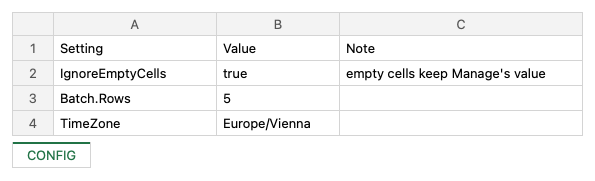
The sheet applies when you hold the option CONFIGSHEET. A workbook may tighten a limit, such as
the number of rows, and never loosen one. A setting the administrator has locked stays as it is,
and the plan says so.
What the importer leaves out#
A few sheet kinds of the old tools stay unused: key update sheets, sheets that run SQL, and the sheets of the aviation add-on. MAS Data Import skips them and names them in the plan. Key changes and raw SQL bypass Manage’s business rules, and an import that works as you stays inside them.
Why the format is worth keeping#
Workbooks are where the knowledge of a data load lives: which columns a customer fills, which child
records belong together, which rows must never create a record. Over the years, teams built
libraries of them. Reading that format means those libraries keep their value on the Maximo
Application Suite. On every build, our example workbooks run against Manage: simple, extended and
specification sheets, multilevel hierarchies, INDEX sheets, texts in more languages, deletes, and
the add-only and update-only flags.
What comes next#
The next article is about where MAS Data Import runs: a companion app beside Manage, inside the Maximo Application Suite. The MAS Data Import page lists the whole series, and the first article tells where the tool comes from.
Want to see your own workbooks in MAS Data Import? Get in touch.