
Why the plan comes first#
A data load goes wrong in a few familiar ways. A column name has a typo, and its values never arrive. A key finds another record than the one you meant. A value is too long for its field. The person who runs the load lacks a right in one application.
Each of these is cheap to fix in the workbook and expensive to fix in Manage after the load. So MAS Data Import looks for them first. It plans the whole workbook against Manage, shows you the plan, and writes only when you start the run.
Three passes over the workbook#
The planner works in three passes. Each pass finishes for every sheet before the next one starts, so the plan shows the problems of the whole workbook at once.
- Structure. For every sheet, the planner finds the object of each column group, the columns it uses and ignores, and the keys. A sheet whose object or relationship Manage does not know fails here, with its reason. The other sheets go on.
- Cells. Every cell is read by its type in Excel and by the attribute’s type in Manage. A value longer than the attribute allows, a number in a date attribute, a formula without a stored value or a flag that is neither yes nor no becomes an error on its cell.
- Verdicts. The app asks Manage what each row would do, with your sign-in. A script inside Manage looks up each record in plan mode and saves nothing. The rows travel in batches, so a large sheet plans as a steady stream.
On the object structure path, the plan goes one step further. It sends each row group to Manage as a preview of its document. Manage processes the document, keeps nothing, and answers with its own message, which lands in the plan. A few groups wait for the run, such as a new record whose key Manage numbers itself.
A verdict for every row#
| Verdict | What the row will do |
|---|---|
| insert | Create a new record. |
| update | Find a record and change it. |
| unchanged | Find a record that already holds every value. Nothing is written. |
| delete | Find its record and delete it, because the row is marked $DELETE. |
| skip | Stay out, because a control column says so, such as $UPDATEONLY on a record that does not exist. |
| error | Stay out, because it cannot be written as it stands. The message says why. |
A row finds its record in a fixed order, the one the workbook format has always used:
- A filled unique id column, such as
ASSETUID, finds the record by its id. When no record has that id, the row is an error. - When every key column is filled, such as
ASSETNUMandSITEID, the keys find the record. - Otherwise the row inserts a new record.
- Then
$DELETE,$UPDATEONLYand$ADDONLYapply.
Your rights are part of the plan#
The plan checks your options in the target application: INSERT for a new record, SAVE for a
change, DELETE for a row marked $DELETE. A row you may not write becomes an error that names
the missing option, such as “You need the INSERT option in ASSET for this row.” You see it before
the run, and you can ask for the right or take the row out.
Row groups, and records the workbook creates#
A record and its child records form a row group, and each item of the group gets its own verdict. Manage saves a group as a whole. So when one item has an error, the plan marks the rest of the group too: “Another item of this row group has an error, so the group is not saved.”
The plan also remembers what the workbook itself creates. When one sheet inserts a job plan and a later sheet adds labor to it, the later rows plan as updates of the new job plan. Their message names the sheet that creates it.
What the plan screen shows#
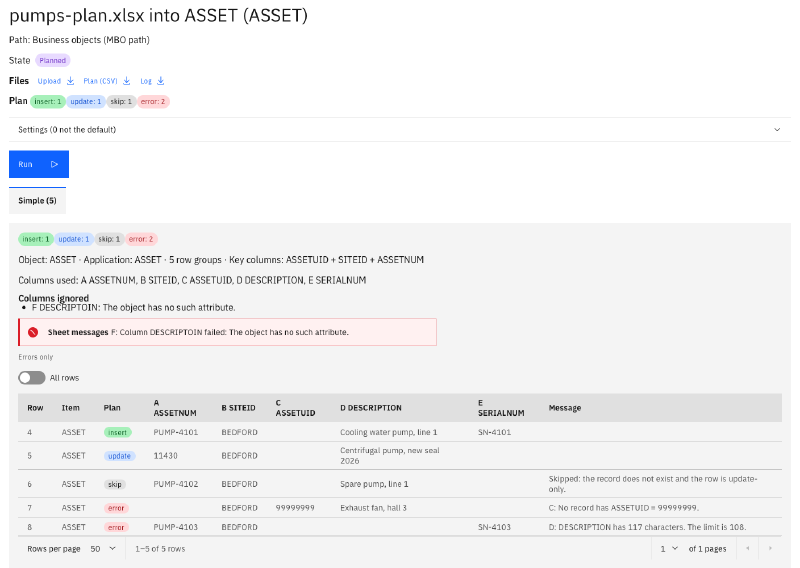
Here a small asset workbook plans five rows. Row 4 inserts a new asset, and row 5 updates an asset that exists. Row 6 is skipped, because it is marked update-only and its asset does not exist. Row 7 names a unique id that no record has. The description in row 8 is longer than Manage allows.
The header DESCRIPTOIN in column F has a typo. The plan lists the column as ignored and names it
in the sheet’s messages, so you see before the run that its values would stay behind.
For each sheet, the screen shows the counts per verdict, the object, the key columns, the columns used and ignored, and every row with its verdict and message. Errors only hides the good rows when a large workbook has a few problems. The panel Settings lists every setting of the job with its value and where it came from. Sheets the importer skips are listed with their reason, and Plan (CSV) downloads the whole plan as a file.
The run keeps to the plan#
Records can change between the plan and the run. A colleague edits an asset, or another job creates one. So the run looks up each row group again when it writes it.
The plan is the contract. The run writes a row only with the action the plan showed, and a row whose verdict has changed ends as an error. A row planned as an insert that now finds a record ends with “The verdict changed since the plan (insert then, update now). Run the job again to see the new plan.” The new plan shows the new verdict, and you decide again.
Two changes are harmless and pass. A planned update whose values Manage already holds ends as unchanged. A planned delete whose record is already gone writes nothing.
Plan the result again#
After a run, the job offers the workbook as Result for another run: the values Manage wrote back are in it, such as the ids of new records, and the result texts and red marks are left out. Upload it and plan it again, and every row the run wrote reads unchanged.
Our examples suite does exactly that on every build, for job plans with their tasks and labor, on both write paths. When those rows read unchanged, Manage holds what the workbook says.
What only the save can tell#
The plan saves nothing, and some rules of Manage fire only when a record is saved, such as a validation in a business object or your own automation script on save. Those show at run time, in the result of the row, and the rest of its row group stays unsaved.
A required attribute that is empty on a new record is a warning in the plan. Manage fills some of them itself, such as the number of a job task, so the save decides.
From the command line#
mas-import upload creates a job, waits for its plan, prints it, and writes nothing to Manage. It
ends with exit code 0 when the plan can run, and with 5 when no sheet of it can. A build server can
stop on that, and mas-import rows <job> --sheet <name> --errors lists the rows with errors.
What comes next#
The next article is about the sign-in: how MAS Data Import works as you, which rights it checks, and what its log keeps. The MAS Data Import page lists the whole series.
Want to see the plan of your own workbooks? Get in touch.